
VIDEO
How to choose screens people can actually read
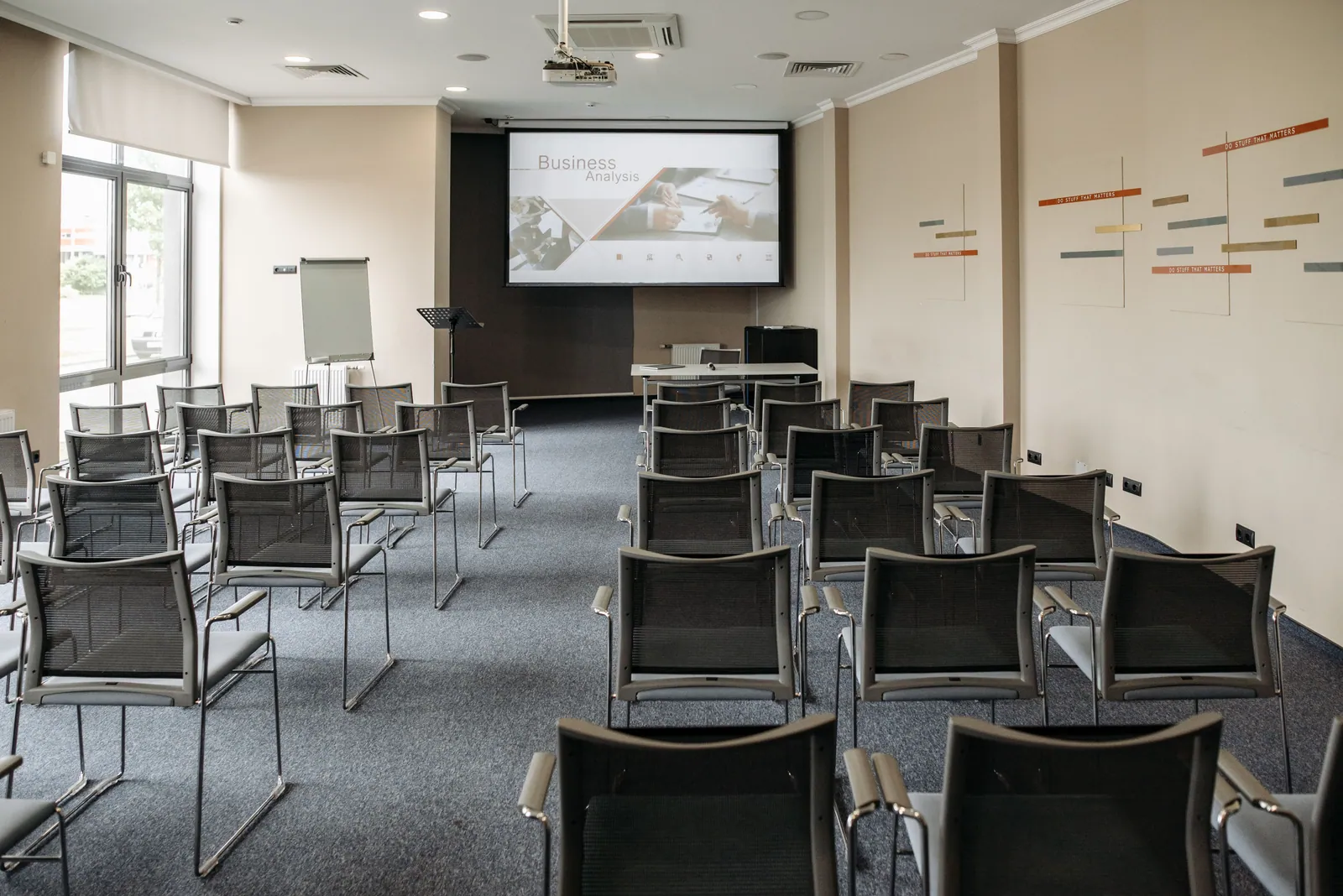
Can someone at the back read the important detail on your slides? That’s a better starting question than simply asking for a particular screen size. A display can have an impressive specification and still be too small, too far away or in the wrong place for the content.
Send your AV supplier a room plan and a few real slides. Include the awkward ones: the chart, table or diagram people must understand. Those will tell the team more than a title slide with a large photograph.
Look at the smallest important detail
A title slide with a photograph asks less of the audience than a dense spreadsheet. Decide which information must be read, rather than merely recognised. A chart’s labels, a table’s figures and the detail in a demonstration may be the elements that determine the screen plan.
AVIXA’s display-image-size guidance connects the image and its content with the viewer’s position. The relevant measurement is the displayed image area and the size of the information within it. A higher-resolution panel alone does not make small words larger for somebody at the back.
Use the seating plan, including its awkward seats
Identify the furthest seats, the seats at an angle and any columns or room features between them and the display. Think about people sitting behind other people, and how the stage or lectern changes the view. A plan that looks balanced from the back of an empty room may work differently once the audience is seated.
Share photographs taken from representative audience positions. If the room will use cabaret tables, include that rather than sending a theatre-style plan from another event. Your supplier can then discuss screen position and scale against the layout you are actually using.
Decide whether several screens solve a real problem
Multiple displays may help distribute the same presentation around a wide room or put a screen on each side of a stage. They also introduce decisions about the signal route, content and where stands can fit. State whether every screen should show the same thing or whether you expect different content on different displays.
At Weetabix’s conference at Rushton Hall, two screens showed the same presentation to around 80 colleagues. A single laptop fed them through an OREI HDMI-over-Cat6 splitter. That arrangement fitted the room and programme; your seating plan and content are what will determine whether a similar approach makes sense.
Make the slides part of the solution
Work on the slides and the screen plan together. A crowded table might be clearer split across two slides, rather than sent unchanged to a larger display. Microsoft recommends readable type, simple text and avoiding very thin decorative fonts. Once the deck is taking shape, check the important details at the size and distance your audience will experience.
Build a test slide containing the smallest important text, a typical chart and a representative photograph. Ask to see it on the planned system, from an audience position. Include a video sample if video matters, and check its sound as well as its picture.
- Room dimensions and the proposed seating plan.
- Furthest and side-on audience positions.
- A sample of the real presentation content.
- Whether displays mirror one source or need separate content.
- Space for screens, stands, speakers and clear circulation.
TAKE THIS INTO YOUR BRIEF
Choose the screen and the slides together, using the audience’s view of the room.
Sources & useful reading.
- AVIXA: Learn More About Display Size
Explains the active image area and the relationship between content-element size and viewing ratio.
- AVIXA: DISCAS display-size calculators
Identifies viewer distance, image height, resolution and content needs as display-planning variables.
- Microsoft: Tips for creating and delivering an effective presentation
Supports readable slide typography and reducing unnecessary text. No fixed font size is claimed sufficient for every venue.
Put it into practice.
If you’re planning an event, send the date, venue and what you know so far. We’ll help work through the rest.
Talk through your eventA little more useful reading.
VIDEO
One presentation, several screens: planning the signal
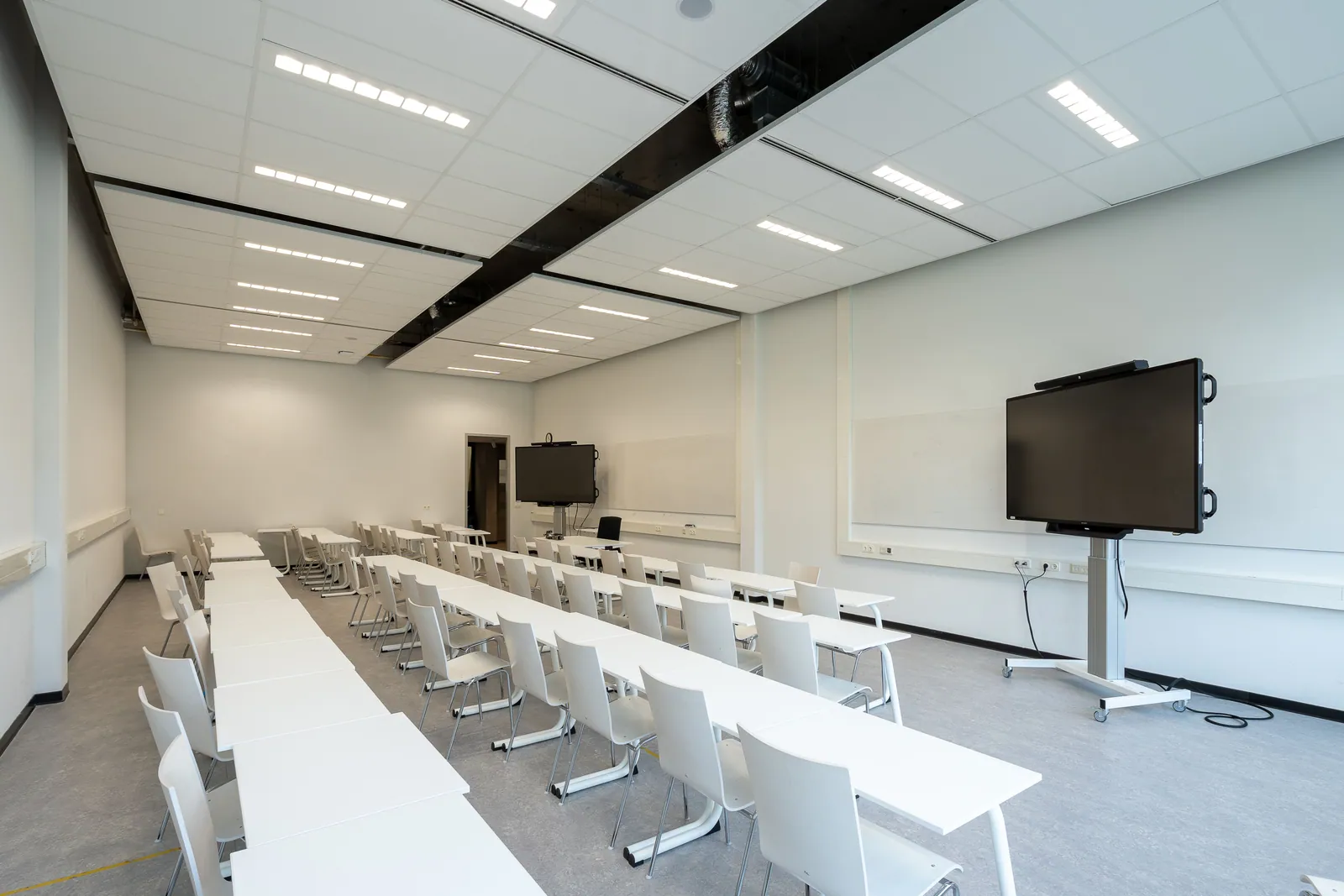
Plan a multi-screen presentation around the source, content, cable route and operator. Understand what a splitter does before choosing the setup.
Read the guide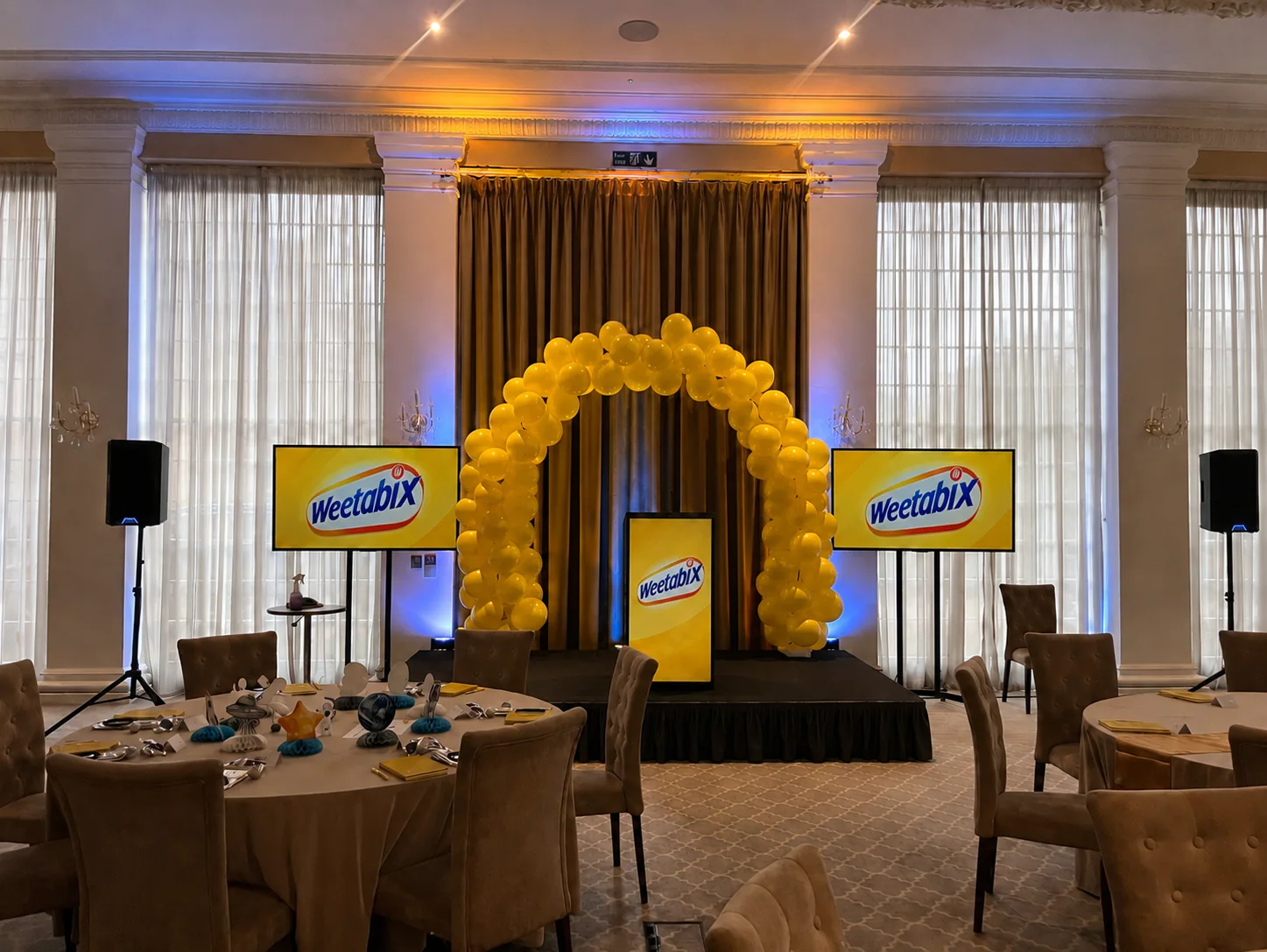
EVENT PLANNING
What is a lectern, and which one suits your event?
A lectern holds a speaker’s notes. Here’s how to choose one around the presenter, working surface, microphone and branding, with a real conference example.
Read the guide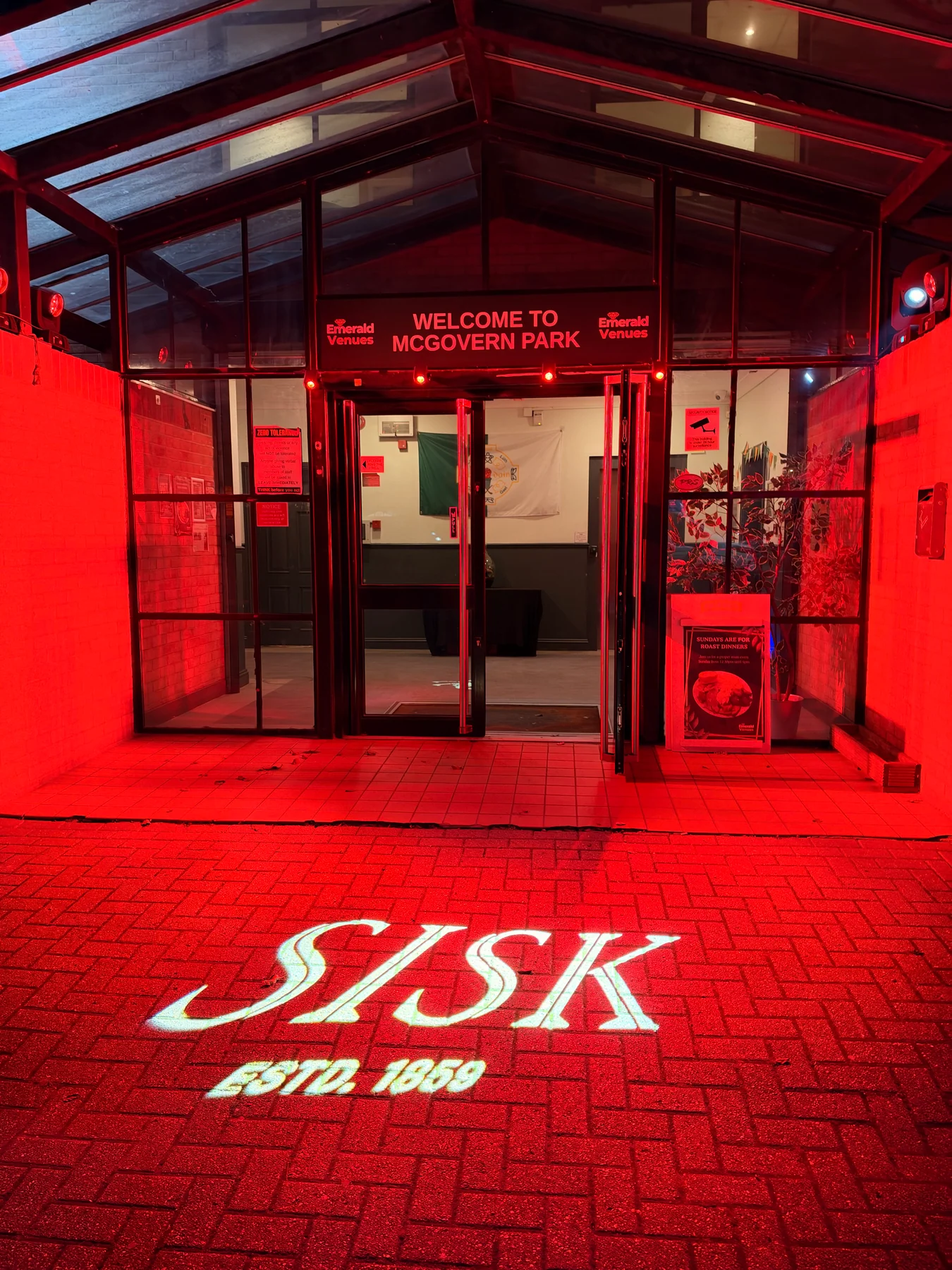
LIGHTING
What is a gobo? Logo projection at events explained
How gobos project logos and patterns at events, what affects the result, and how to plan artwork, surfaces and lighting, with a real SISK example.
Read the guide