
VIDEO
What is a confidence monitor, and does your event need one?
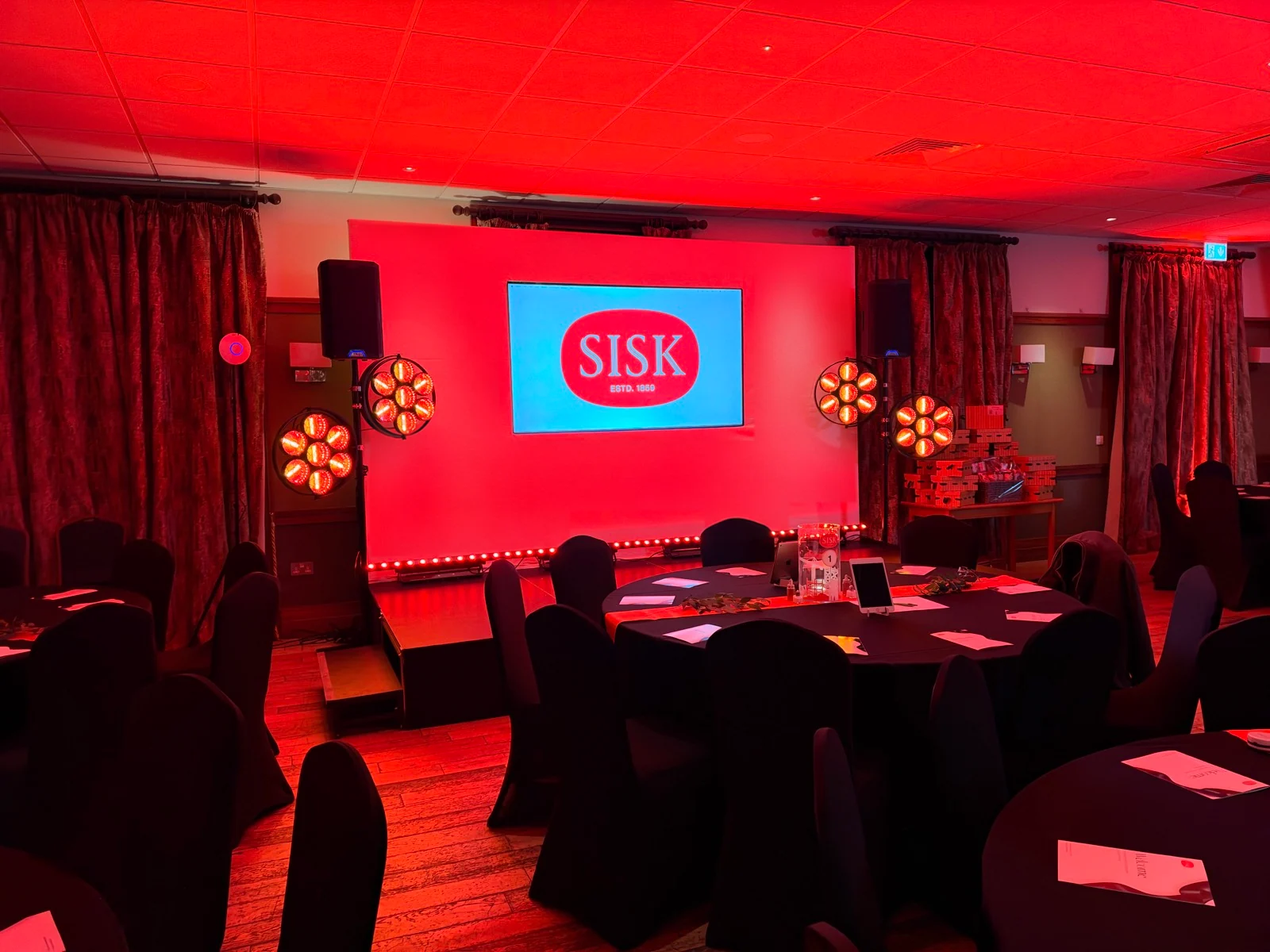
A confidence monitor is a screen facing the presenter rather than the audience. Often called a comfort monitor or downstage monitor, it lets a speaker check slides or other information while continuing to face the room.
The useful question is what your presenter needs to see. A copy of the current slide, private speaking notes and a countdown clock are three different requests. Adding a screen only helps when its content and position suit the person using it.
Start with the view the speaker needs
For a speaker who knows their material, the current slide may be enough of a reminder. Someone delivering a detailed update might need short notes and a preview of what comes next. A host keeping several sessions to time may mainly want a large, clear countdown.
These views can be combined, but more information is not always more useful. A slide, notes and timer squeezed into one display may leave each too small to read from the speaking position. Ask the presenter which information matters most, then check that view at the actual distance.
Current slide
A reminder of what the audience can see.
Private notes
A separate presenter view; keep notes off the audience feed.
Time remaining
A timer with an agreed person to start and reset it.
Private notes need a separate picture
PowerPoint Presenter View can show notes on one display while the audience sees the slides on another. That depends on a compatible computer and the displays being configured for separate views. An extra screen connected to a duplicated feed will still show the same picture.
Tell the AV team that notes must remain private before the system is planned. Agree which view goes to the audience and which goes to the presenter, including what happens during laptop changes. Check both outputs with the real presentation; a correct slide on one screen does not confirm what is on the other.
A countdown needs someone to run it
A screen does not know when a talk has started. Agree who starts, pauses and resets the timer, and whether a speaker should see elapsed time or time remaining. Decide how a warning will be communicated if a session runs over.
Dedicated software can provide more than a clock. Shoflo’s Speaker Timer View, for example, can include the current running-order item, upcoming item and speaker notes. That illustrates what is possible; it is not a claim that this software is included in a Bucks AV booking.
Check the view from the stage
Walk to the positions the speaker will actually use. Can they read the display standing at the lectern, seated on a panel and near the side of the stage? A screen that works from one fixed position may not serve a host who moves around the room.
Agree the screen position alongside the stage layout, steps, furniture and audience sightlines. Have the technical team and venue plan its support and cable route. Allow a few minutes for the presenter to try their actual notes and slides before guests arrive; looking at an empty screen during setup tells you very little.
Is it the same as a teleprompter?
There is some overlap in what can be displayed: a confidence screen can carry script text. A conference teleprompter is a different arrangement, using a monitor reflected in transparent glass near eye level. Autocue’s explanation shows how the presenter reads the reflection while the audience sees through the glass.
If someone intends to read a speech word for word, discuss that explicitly. It affects text size, scrolling, sightlines and who follows the speaker’s pace. Asking for a confidence monitor alone does not settle those details.
When a simpler arrangement is enough
For a short welcome without slides, an extra display may add little. A presenter staying at a lectern might be comfortable with notes on their laptop. The decision should follow how they plan to speak, rather than the size of the audience alone.
Before committing, agree four things with the speaker and production team:
- The information the presenter needs: slides, notes, timer or script.
- The positions from which it must be readable.
- Who advances the slides and controls any timer or scrolling.
- A time to check the presenter and audience views together.
TAKE THIS INTO YOUR BRIEF
Describe the presenter’s view separately from the audience’s. Then check the content, reading distance and controls with the person who will use it.
Sources & useful reading.
- Encore: confidence monitors
Defines presenter-facing displays and their role in showing presentation content, notes or scripts.
- Microsoft: present on multiple monitors
Explains separate presenter notes and audience slides, including the need for compatible multiple-display support.
- Shoflo: Speaker Timer View
A software example of timer, running-order and notes views. No Bucks AV software ownership or package inclusion is implied.
- Autocue: how a prompter works
Explains the monitor and beamsplitter-glass arrangement used by conference teleprompters.
Put it into practice.
If you’re planning an event, send the date, venue and what you know so far. We’ll help work through the rest.
Talk through your eventA little more useful reading.
VIDEO
How to choose screens people can actually read
Plan conference screens around the room, audience and slide content. A guide to viewing distances, sightlines, multiple displays and useful checks.
Read the guide
VIDEO
One presentation, several screens: planning the signal
Plan a multi-screen presentation around the source, content, cable route and operator. Understand what a splitter does before choosing the setup.
Read the guide
EVENT PLANNING
What is a lectern, and which one suits your event?
A lectern holds a speaker’s notes. Here’s how to choose one around the presenter, working surface, microphone and branding, with a real conference example.
Read the guide